How to Migrate from Chrome to Samsung Browser on Windows: A Step-by-Step Guide
Introduction
Tired of Chrome's sluggish performance, bloated extensions, and memory-hogging habits? Samsung Browser has finally landed on Windows, bringing a refreshing alternative with deep integration across your Galaxy devices. In this guide, you'll learn exactly how to make the switch smoothly—from installation to customization—so you can enjoy a faster, more organized browsing experience without losing your bookmarks, passwords, or productivity.
What You Need
- A Windows PC (Windows 10 or later)
- A Samsung account (free; create one if you don't have it)
- Google Chrome browser already installed (to transfer data)
- Optional: A Galaxy phone or tablet for cross-device features
- Stable internet connection
Step-by-Step Guide
Step 1: Download and Install Samsung Browser on Windows
Head to the official Microsoft Store and search for "Samsung Browser." Click Install to download the app. The installation is quick—under a minute—and does not require a system restart. Once installed, launch the browser to begin setup.
Why this step matters: While most people stick with a default browser, Samsung Browser's Windows version offers a leaner memory footprint compared to Chrome, which often slows down after accumulating extensions and cached data. By starting fresh, you regain speed and system resources.
Step 2: Sign In to Your Samsung Account
Upon first launch, you'll be prompted to sign in. Use your Samsung account credentials (or create a new one). This step is crucial because it unlocks seamless sync—much more than basic bookmark sharing.
Why this step matters: Signing in connects your Galaxy phone and Windows PC, allowing you to share tabs, passwords, and even continue browsing sessions across devices. Unlike Chrome, which requires multiple extensions for cross-platform continuity, Samsung Browser does this natively.
Step 3: Import Your Chrome Data
Don't worry about losing your digital life. Go to Settings > Import Browser Data and select Chrome. You can bring over:
- Bookmarks
- History
- Saved passwords
- Form autofill data
Click Import and watch your familiar setup appear in minutes. If you have multiple Chrome profiles, repeat for each one.
Why this step matters: Switching browsers often feels cumbersome because of data migration fears. Samsung Browser makes it painless, so you can start using it immediately without rebuilding your entire browsing environment.
Step 4: Customize Your Experience – Ditch the Clutter
Chrome's toolbar often becomes overloaded with extensions. In Samsung Browser, take control of what you see:
- Right-click the toolbar and select Customize Toolbar.
- Remove unnecessary buttons and keep only essential ones (e.g., bookmarks, history, extensions you truly use).
- Enable Reading Mode for distraction-free article viewing.
You can also change the default search engine and manage shortcuts on the new tab page.
Why this step matters: Samsung Browser is designed to be minimal and organized. By cleaning up the interface, you reduce visual clutter and improve focus—something Chrome users often lose over time.
Step 5: Rebuild Your Extension Set Selectively
Chrome famously accumulates dozens of extensions, many of which are rarely used. Samsung Browser supports many popular extensions (through a compatible store), but take this as an opportunity to audit your needs.
- Open the Extensions menu (puzzle icon).
- Browse available add-ons or search for specific ones.
- Only install what you actually use regularly—like an ad blocker or password manager.
For unsupported extensions, consider web-based alternatives or bookmarklets as workarounds.
Why this step matters: Chrome's memory footprint balloons partly because of extensions. Samsung Browser encourages a lighter, more intentional extension load, which keeps your system responsive.
Step 6: Configure Cross-Device Features (Optional but Recommended)
If you own a Galaxy phone or tablet, maximize integration:
- Enable Continue on PC in your phone's Samsung Internet settings.
- Send web pages directly from your phone to the Windows browser.
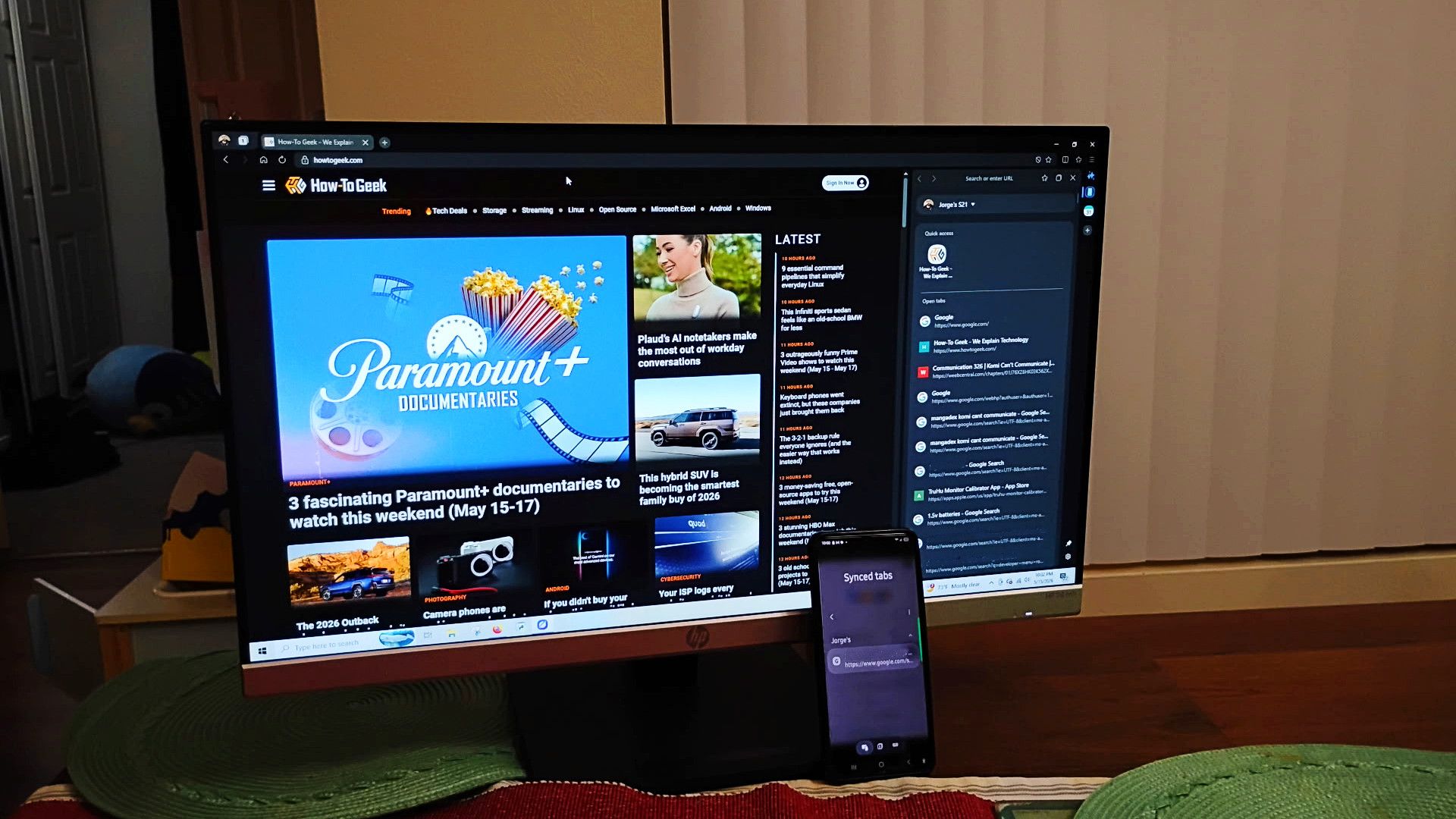
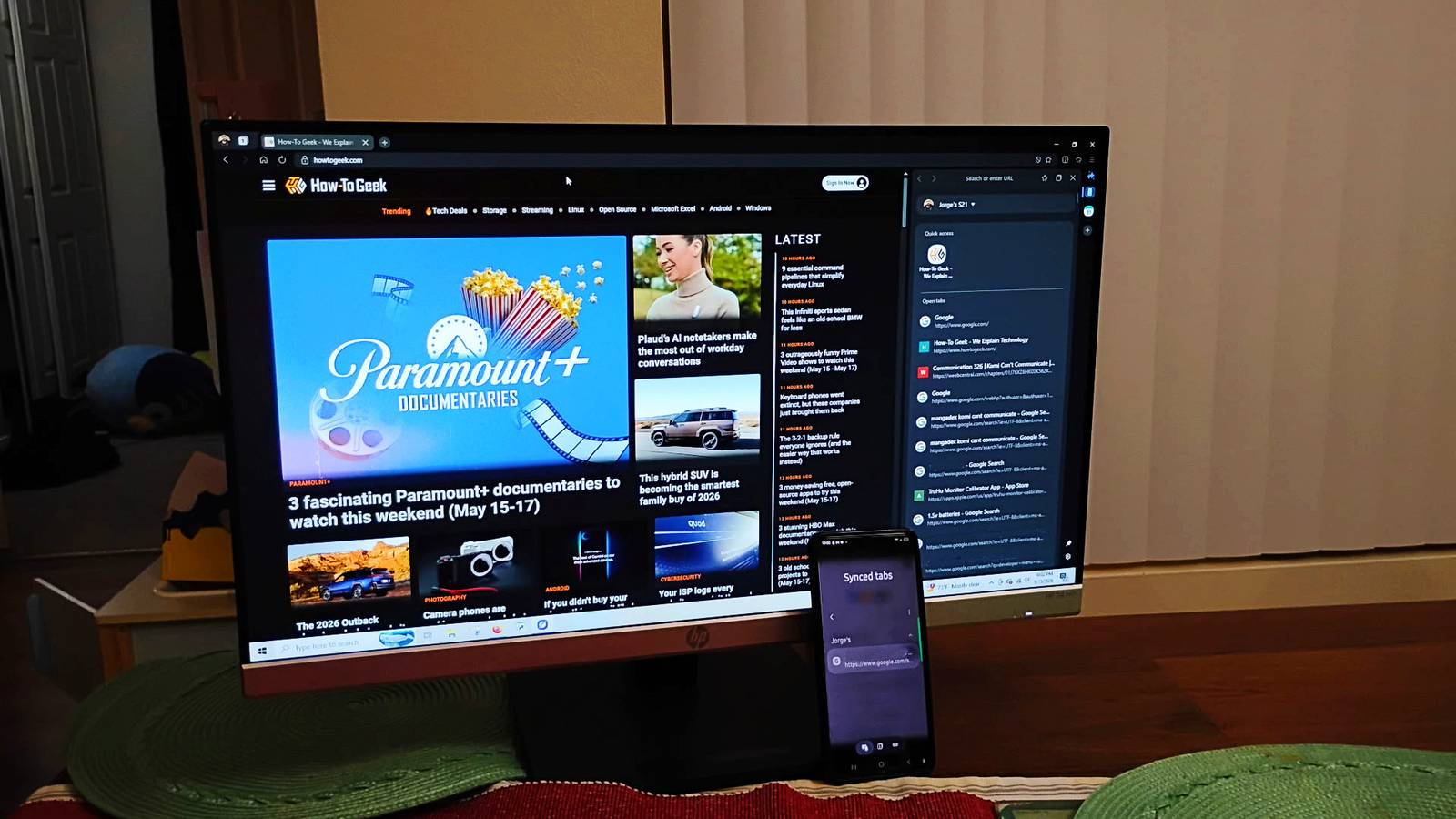
- Access recent tabs from your mobile device instantly.
These features go beyond simple bookmark syncing—they create a fluid ecosystem that Chrome's Windows version can't match without additional apps.
Tips for a Smooth Transition
- Keep Chrome as a backup for a week or two. You can always switch fully once you're comfortable.
- Adjust privacy settings in Samsung Browser (Settings > Privacy & Security) to block trackers and enable anti-tracking mode—it's more robust than Chrome's built-in tools.
- Use the built-in screenshot and note-taking tools for quick captures—no extra extensions needed.
- Monitor performance: After a few days, check Task Manager to see if Samsung Browser uses less RAM than Chrome did. Many users report noticeable improvements.
- Explore Samsung Pass for password management across devices—it's integrated and more convenient than third-party alternatives.
Switching browsers doesn't have to be daunting. With Samsung Browser on Windows, you gain a faster, cleaner alternative that keeps you connected across your Samsung devices. Follow these steps, and you'll wonder why you waited so long.