Revive Your Sluggish Fire TV Stick: Practical Solutions Before You Upgrade
Streaming devices aren't built to last forever, and your Amazon Fire TV Stick is no exception. However, when it starts acting sluggish, you don't have to immediately shell out for a new one. More often than not, the culprit isn't failing hardware but a buildup of cache, unused apps, or outdated software. With a few simple steps, you can restore its speed and extend its life.
Clear the Cache and Data
Over time, apps store temporary files to speed up loading—but too much cache can actually slow things down. Clearing the cache is a quick, harmless fix that often works wonders.
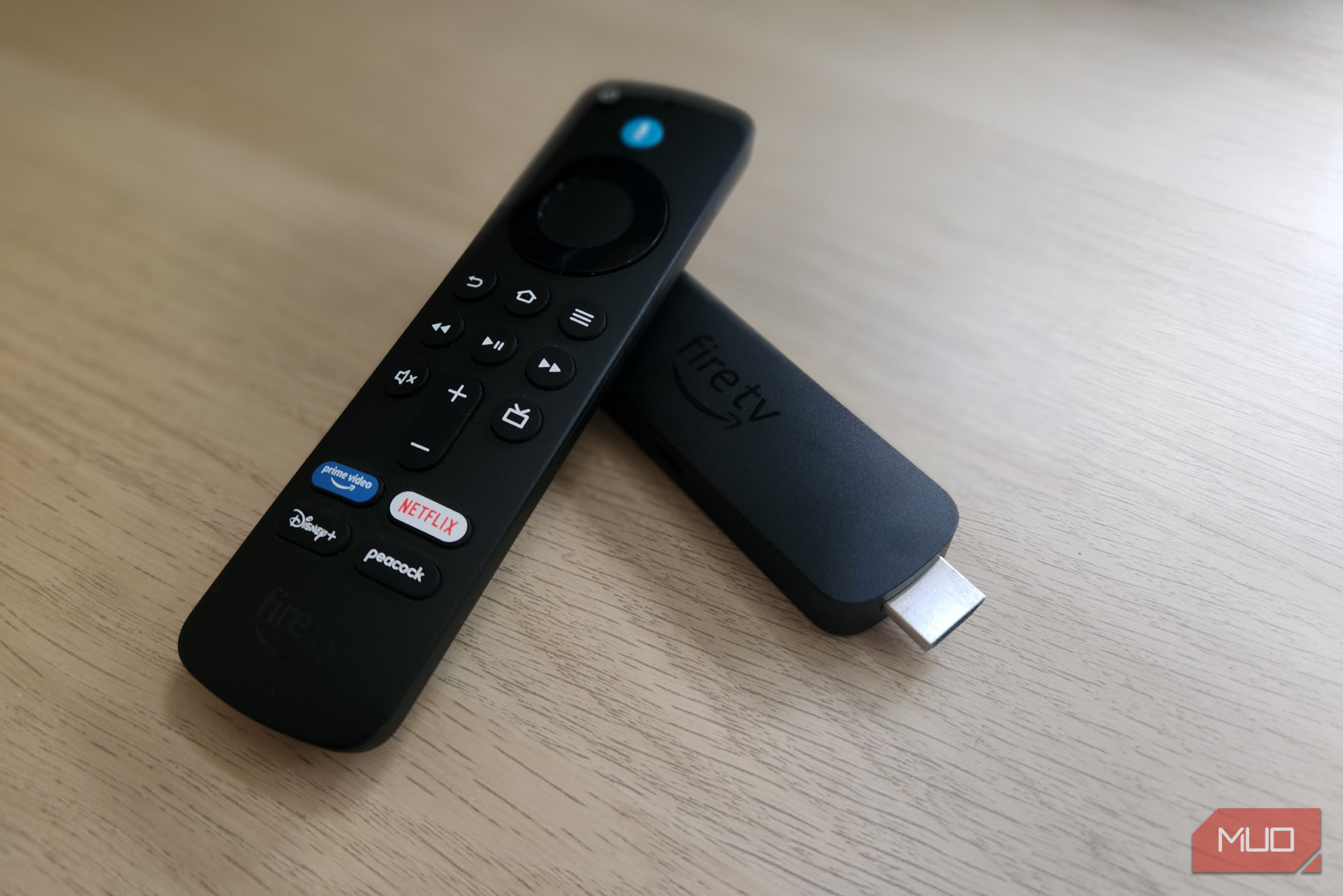
How to Clear Cache on Fire TV Stick
Go to Settings > Applications > Manage Installed Applications. Select an app (start with streaming apps like Netflix, Hulu, or Prime Video), then choose Clear Cache. Avoid clearing data unless you want to reset the app entirely (you'd lose login info and preferences). Repeat for multiple apps. After clearing, restart your device.
Remove Unused Apps
Installed apps you never use take up storage and can run background services, draining performance. Uninstalling them frees up space and reduces strain.
How to Uninstall Apps on Fire TV Stick
From the home screen, navigate to Settings > Applications > Manage Installed Applications. Pick any app you don't use often, select Uninstall, and confirm. Pay special attention to apps you installed for one-time use or those that came pre-loaded but are unnecessary (like games or news apps).
Update the Software
Outdated Fire OS can cause compatibility issues and slowdowns. Amazon regularly releases updates that improve performance and fix bugs.
Checking for Updates
Go to Settings > My Fire TV > About > Check for Updates. If an update is available, install it and restart your device. Keep your Fire TV Stick connected to Wi-Fi and plugged in during the update process.
Restart or Factory Reset
A simple restart can clear temporary glitches. Unplug the Fire TV Stick from power, wait 30 seconds, and plug it back in. If that doesn't help, a factory reset may be needed—but it's a last resort because it erases all settings and data.
When to Perform a Factory Reset
Only do this if the device remains unusably slow after trying cache clearing, app removal, and updates. To reset, go to Settings > My Fire TV > Reset to Factory Defaults. You'll need to set up your device from scratch afterward.
Optimize Storage and Background Processes
Low storage can cripple performance. Check your storage by going to Settings > My Fire TV > About > Storage. Aim to keep at least 500 MB free. Besides uninstalling apps, move photos or videos to cloud storage, disable automatic downloads, and turn off background app refresh for apps you rarely use. Also consider disabling Alexa voice recordings or limiting data collection if privacy settings allow—these can consume resources.
Consider Network Issues
A slow internet connection can make the Fire TV Stick feel sluggish, especially with streaming. Run a speed test on your TV using the Settings > Network menu. If your download speed is below 10 Mbps, try moving the router closer, using a Wi-Fi extender, or connecting via an Ethernet adapter (available for some Fire TV models). Also, reduce interference by switching to the 5 GHz band if your router supports it.
Additional Quick Tips
- Close background apps: Double-tap the Home button to see recent apps and swipe them away (or press the menu button to close).
- Disable animations: In Settings > Accessibility, enable Disable system animations for a snappier interface.
- Use a lightweight launcher: Some third-party launchers are more efficient than the default Fire TV interface.
- Keep your remote batteries fresh: Weak batteries can cause unresponsive inputs that mimic a slowdown.
Before you spend money on a replacement, try these fixes. Most Fire TV Stick slowdowns are reversible with a little maintenance. If none of these steps help, the hardware may indeed be at the end of its life, but you'll have the satisfaction of knowing you exhausted all options first.